
The story in brief
Cheap color grading usually comes from uncontrolled contrast, color casts, clipped highlights, and effects without a visual reason. Learn how to diagnose and fix the problems in footage, stills, and AI-generated images.
Inside this story
Cheap color grading is not defined by the software used, the size of the budget, or the absence of an expensive colorist. A polished image can come from a small room, a free application, and one carefully chosen adjustment. An expensive production can look cheap when the grade is loud, inconsistent, or disconnected from the light in the scene.
The problem is usually not that the image lacks an effect. It is that the viewer can see the effect before they can feel the scene. Blacks are crushed because the frame was supposed to look cinematic. Saturation is pushed because the image was supposed to look rich. Shadows are turned blue and highlights orange because someone wanted a film look. Skin is isolated with a hard mask, and the subject appears to have a glowing cutout around the face. Every choice announces itself.
Good grading works differently. It supports the image before it stylizes it. It protects the story’s visual priorities, preserves believable materials, and creates relationships between shots. A grade can be bold, strange, graphic, or highly artificial. It only feels cheap when the image appears uncontrolled or when the style has no connection to the subject, light, time, or emotional purpose.
This guide explains what cheap color grading looks like, why it happens, and how to repair it. The workflow applies to camera footage, photographs, motion graphics, and AI-generated images. The names of controls vary between DaVinci Resolve, Premiere Pro, Final Cut Pro, Photoshop, Lightroom, Capture One, and other tools, but the underlying decisions remain similar.
What people mean by cheap color grading
When viewers describe a grade as cheap, they may be responding to several different failures at once. The frame may have poor exposure, but the complaint is expressed as a color problem. The colors may be attractive in isolation, but the shots do not belong together. The image may have technically correct skin, yet the face is separated with a crude mask that reveals the correction.
– Crushed blacks with no useful shadow detail – Highlights clipped without a deliberate reason – Saturation pushed equally across every color – A strong teal and orange split applied to unrelated material – Skin tones that are orange, pink, gray, or inconsistent from shot to shot – Green or magenta color casts left in neutral objects – Excessive clarity, sharpening, glow, or faux film grain – Different contrast levels across cuts in the same scene – LUTs used as a final look instead of a starting point – Color changes that ignore the direction and quality of the original light – Masks with hard edges, halos, or visible tracking errors – A grade that looks attractive on one monitor but fails on normal displays
Not every strong choice is a mistake. A music video can use extreme color separation. A horror film can remove almost all warmth from faces. A commercial can use clipped white backgrounds. The question is whether the choice is controlled, repeatable, and meaningful. If the same effect is placed on every shot because the image feels unfinished, the grade is probably compensating for an unresolved problem.
A useful diagnosis begins by separating correction from style. Correction asks whether the image is exposed, balanced, and consistent. Grading asks what the image should communicate. If the correction is unstable, the style has no reliable surface to work on.
Why color grades look cheap
The grade begins with a preset instead of a visual decision
Presets and LUTs are useful because they provide a fast reference. They can reveal one possible direction and help a team compare options. They become destructive when the preset is treated as a destination. A LUT built for one camera transform, exposure range, or color space may produce harsh results on another image. A social media preset may be designed for a small preview, not a theatrical sequence. A vintage preset may lift blacks and reduce saturation in ways that erase the very contrast the scene needs.
The preset is not the style. It is a set of mathematical changes made under particular assumptions. If those assumptions do not match your source, the image can break before you have made a creative decision.
Start by viewing the ungraded image and writing one sentence about the intended result. For example: “A cool, restrained night interior with readable faces and warm practical lights.” That sentence gives you a test. Any adjustment that makes the frame less readable, less restrained, or less connected to the practical lights needs to be questioned, even if it looks more dramatic in a still comparison.
Contrast is increased before exposure is corrected
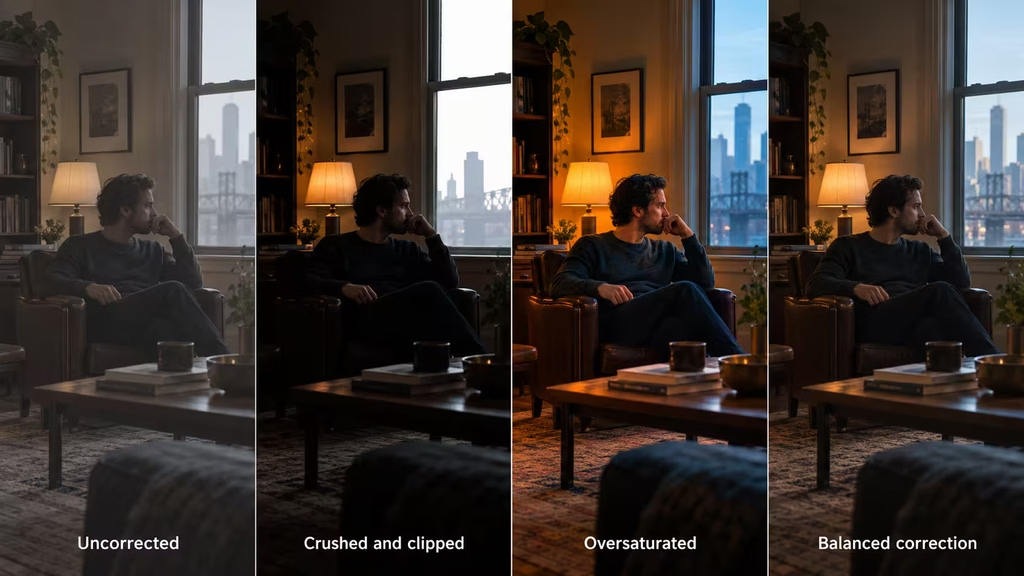
An underexposed image often looks flat because the important midtones are sitting too low. Raising contrast may make the frame seem punchier, but it also drives the shadows toward black and leaves faces too dark. The result has dense areas without shape. The image looks dramatic in a thumbnail and empty at full size.
Correct the overall level first. Set the exposure so the subject sits in a plausible range, then establish the black and white points, and only afterward decide how much separation the scene needs. A mild tone curve usually gives more control than a large global contrast slider. Protect the midtones that carry faces, clothing texture, architecture, and important objects.
The reverse problem is also common. A bright, low-contrast source is given a heavy S-curve. The shadows become dirty gray or black, while bright areas lose texture. If the scene was recorded in soft light, the grade may need shape, but it does not need to pretend that the light was hard.
Black levels are crushed to imitate a cinematic image
Many people associate cinema with deep blacks. Cinema does not require every dark value to be pure black. The important distinction is between a controlled black point and destroyed shadow information.
A black point can anchor the image. It gives the eye somewhere to register density and helps the frame survive ordinary display conditions. Crushing the low end indiscriminately removes texture from hair, dark clothing, walls, foliage, and faces. It also makes compression artifacts more obvious because large shadow areas turn into blocky, undifferentiated shapes.
Use a waveform or histogram when available, but do not grade by scope alone. A waveform can show that shadows are packed against the floor. It cannot tell you whether the missing detail matters to the story. Check the face, the hands, the background objects, and the next shot. If the audience needs to understand something in the dark area, preserve it.
Highlights are clipped because brightness feels expensive
Bright highlights can feel clean and premium, especially on a small screen. But clipped highlights are not automatically polished. A clipped window, lamp, cloud, or white shirt can remove the texture that tells the viewer what the object is. If every bright area becomes the same white shape, the image has no highlight hierarchy.
Use highlight roll-off rather than simply pulling the entire image down. Lowering exposure to save a window may make the person inside the room too dark. Compressing the upper range, using a soft knee, or reducing highlights selectively can retain both the source of the light and the subject it illuminates.
Intentional clipping is valid when the light is meant to feel overwhelming, artificial, or abstract. The distinction is that intentional clipping is placed. It does not happen everywhere by accident.
Fix the image in the right order
A reliable repair follows a hierarchy. The exact order can change with the footage, but the logic should remain stable.
1. Confirm the color management
Before adjusting the image, identify what the file is and how the application is interpreting it. Is the footage log, raw, Rec. 709, HDR, or already transformed by the camera? Is the project working in a scene-referred or display-referred pipeline? Is a LUT being applied automatically by the camera, the editing application, a monitor, or a node in the grade?
A color-managed project should not receive the same transform twice. Double transforms often create excessive contrast, strange hues, and clipped highlights. The image may look attractive for a moment, but the controls become difficult to predict.
For still images, check whether the file is tagged with an embedded profile and whether the application is displaying it correctly. For AI-generated images, the file may be an ordinary sRGB image, even if the prompt described a film stock or log-like look. Treat the rendered image according to its actual file properties, not according to the language used to create it.
2. Set exposure and white balance
Exposure is the first creative boundary. Decide what should be readable and what can fall away. White balance is the second. Neutral objects such as paper, gray walls, silver metal, and white clothing can help you identify an unwanted cast, but do not neutralize every image automatically. A night scene may contain blue ambient light. A sunset may contain warm light. The goal is not to erase the source’s identity.
Correct the largest global error first. If the image is too green, do not start by adjusting individual green objects. If it is too dark, do not begin by increasing saturation. Broad corrections make local judgments easier.
A useful habit is to toggle the correction on and off at regular intervals. Ask whether the image became more readable or merely more impressive. If the grade adds color but makes it harder to identify materials, people, or space, return to the correction stage.
3. Establish a believable tonal range
Set the darkest and brightest useful values without forcing every shot into the same range. A low-key scene may have a narrow bright area and extensive shadow. A bright exterior may carry very little near-black information. The tonal range should describe the light, not standardize it out of existence.
Use the middle of the image to protect the story. Faces, key props, and important surfaces often live in the midtones. A grade with technically impressive endpoints can still fail if the middle is too thin, too gray, or too harsh.
4. Balance the dominant colors
Once exposure and contrast are stable, correct broad color relationships. Look at the entire frame first. Then inspect important neutral areas and skin. If a room is green because of fluorescent light, decide whether to preserve the environment, reduce it, or counter it with a motivated warm source. Do not remove the green simply because it is not flattering in a screenshot.
Color balance is relational. A warm face may look natural beside a cool window but orange beside a neutral wall. A cyan shadow may look elegant in a blue night exterior but dirty in a daylight interview. Always judge a color against its neighboring values and the shots around it.
5. Apply the look with small, targeted moves
A look can be built through contrast shape, saturation strategy, hue relationships, texture, and selective color. It does not need to be a single dramatic layer. Make the first version subtle enough that you can still see the source image underneath. Increase intensity only when the visual idea survives at normal viewing size.
6. Match the sequence
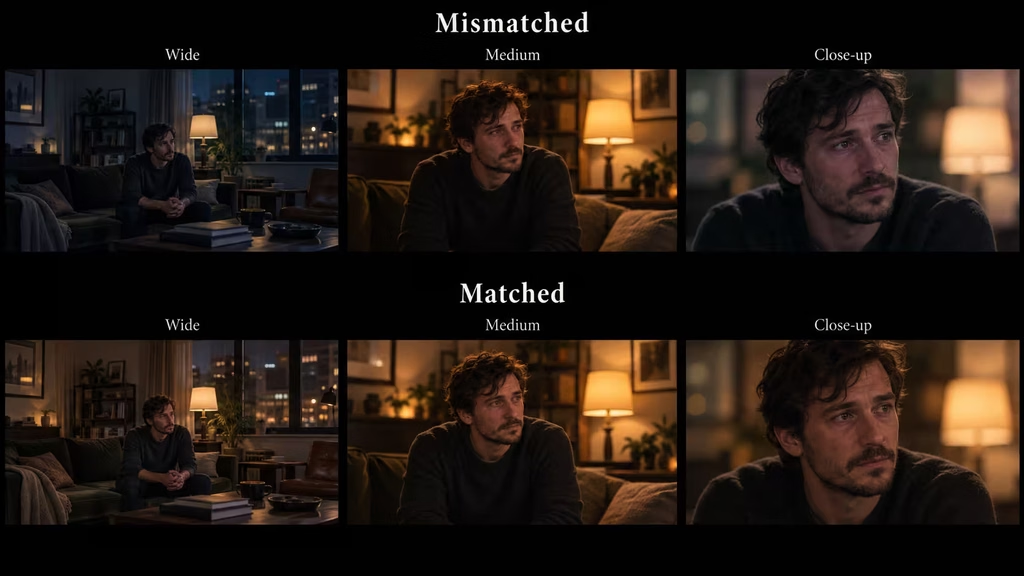
A grade is not finished when one frame looks good. It is finished when the sequence cuts without accidental changes in exposure, white balance, contrast, or skin tone. Match shots in context, not only as isolated thumbnails.
How to repair oversaturation
Oversaturation is one of the clearest signs of cheap grading because it compresses the difference between materials. Red fabric, skin, wood, brick, and warm light can all become the same orange-red mass. Blue skies, cyan shadows, and reflective metal can merge into a single electric color.
Start by lowering global saturation modestly. Then inspect which colors are actually carrying the scene. A restrained grade often uses a selective saturation strategy: one or two color families are allowed to lead, while competing colors are reduced. This does not mean making every background gray. It means deciding what deserves emphasis.
Use luminance and saturation together. A vivid color can draw attention even when it is not bright. A bright, low-saturation surface can also attract the eye through value. If you push saturation to compensate for a weak composition or flat lighting, the problem will return in another form.
Selective saturation adjustments should be soft. Hard hue ranges create bands, broken edges, and unnatural transitions. If a red dress is isolated, include the nearby shades that occur in folds and shadows. Check the result during movement because compression and motion can reveal a mask that looked invisible on a still frame.
For AI images, oversaturation may be present in the generation itself. Words such as “vibrant,” “hypercolor,” “neon,” and “ultra saturated” can push the model toward a synthetic palette. If you want a cinematic result, specify the relationship instead: muted earth tones with one controlled red accent, cool ambient shadows with warm practicals, or low-saturation production design with natural skin.
How to fix bad skin tones
Skin tone is not one fixed hue. It changes with complexion, light source, exposure, surrounding colors, makeup, and camera response. A good correction preserves variation. A cheap grade often turns all faces into a single orange or pink surface.
Begin with exposure and white balance. Many skin problems are caused by a global error rather than a face-specific one. If the entire frame is green, a skin qualifier may hide the symptom while leaving the environment wrong. Balance the image broadly, then refine the face only if necessary.
Use a vectorscope as a reference, not as a command. Skin often falls in a familiar region, but the target is not a line that every face must touch. Deeply warm light, reflected color, and stylized scenes can move skin away from a conventional target. The visual question is whether the person remains believable and consistent with the light.
When qualifying skin, soften the matte and check the edge around hair, ears, hands, and neck. A face correction that stops at the jaw can create a visible border. Track the mask through movement and changes in light. If the correction requires a complicated mask to remain hidden, reduce its strength.
Do not isolate skin simply because it is important. Sometimes the better repair is to adjust the surrounding background so the face has separation. A cool wall can make a neutral face appear warm without changing the face. A slight reduction in orange saturation throughout the scene may look more natural than a bright orange face correction.
Different shots of the same person should be matched by perceived brightness, color, and contrast. A technically similar hue can still feel wrong if one face is much brighter or more saturated than the next. Cut between the shots repeatedly while making small changes.
How to fix teal and orange overload
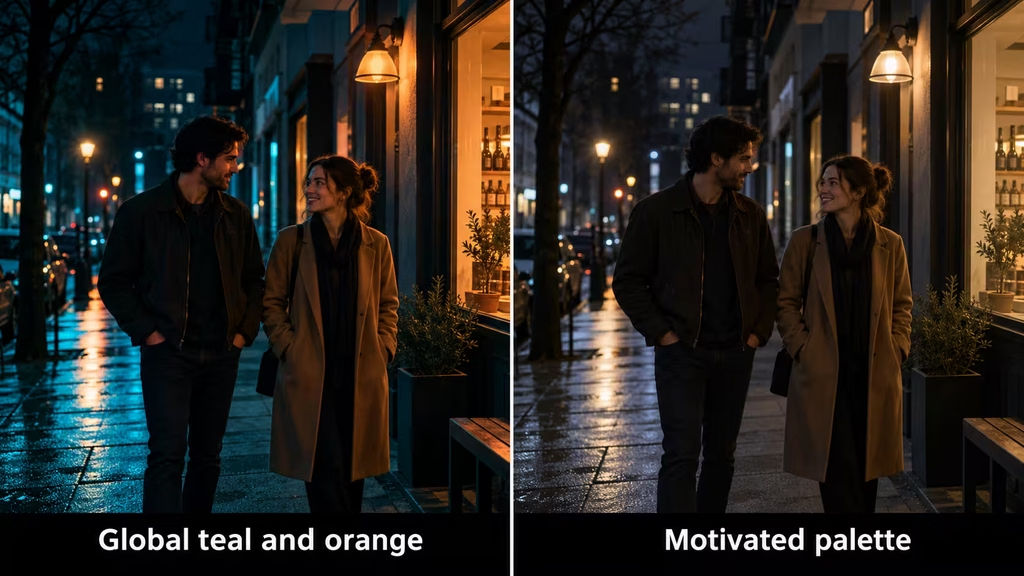
Teal shadows and orange highlights became popular because the combination separates warm subjects from cool environments. Used with care, it can clarify a frame. Applied globally, it becomes a shortcut that makes every image resemble the same preset.
The problem is not the presence of teal or orange. The problem is forcing unrelated pixels into those families. Green leaves can become cyan, neutral shadows can become blue, and every face can become orange. The palette then announces the grade instead of the scene.
First ask whether the light supports the relationship. Is there a warm practical, sunset, fire, or sodium source that justifies warmth? Is the environment genuinely cool because of sky, shade, fluorescent light, or production design? If the answer is no, the split may be decorative rather than motivated.
Reduce the range of the transformation. Tinting the deepest shadows slightly cool can be enough. Warm the key light or a selected highlight family instead of shifting every highlight. Preserve intermediate colors so the image does not become a two-color illustration.
Use neighboring shots as the test. A teal and orange look may work on a close-up with a warm face against a cool wall, then fail on a wide shot full of green plants and neutral clothing. The look should adapt to the shot while keeping the same visual intention.
How to repair muddy or colored shadows
Shadows can carry color, but they should not look like a layer of dye. Muddy shadows often result from lifting the black point while adding saturation, applying a LUT to an image with a different transfer function, or pushing complementary colors without checking neutral objects.
Temporarily reduce saturation to inspect the tonal structure. If the image is still muddy in monochrome, the problem is contrast, exposure, or local separation. If it becomes clean in monochrome but unpleasant in color, the problem is hue or saturation.
Check the darkest areas for hue noise. Compression, underexposure, and heavy chroma adjustments can produce green, purple, or blue contamination in areas that should be nearly neutral. Instead of globally neutralizing the shadows, reduce chroma in the lowest luminance range. Keep enough color for the intended atmosphere, but prevent the shadows from competing with the subject.
Do not lift every shadow to rescue detail. Sometimes the source has insufficient information, and raising the low end reveals noise rather than texture. A smaller, cleaner shadow area may look more intentional than a gray frame full of artifacts. If the scene requires visible detail, use local light shaping or a targeted lift around the subject rather than raising the entire image.
How to control clarity, sharpening, glow, and grain
Texture effects are often added to make an image feel finished. They can instead make a basic grade look processed. Excessive sharpening creates bright and dark halos around edges. Clarity exaggerates local contrast in skin, brick, foliage, and compression noise. Glow spreads around every bright object, even when there is no reason for atmospheric diffusion. Grain placed on top of a poorly exposed image emphasizes defects.
Use texture only after the tonal and color relationships work without it. Toggle each effect independently. If removing it makes the image cleaner without removing the visual idea, it was too strong or unnecessary.
Sharpening should support the delivery size. A frame that looks crisp at 200 percent may look brittle at normal size. Check fine hair, text, eyelashes, foliage, and high-contrast edges. If halos appear, reduce the radius or strength, or use a more selective approach.
Glow needs a source. It can support a bright practical, foggy atmosphere, a dream sequence, or a soft lens characteristic. It looks cheap when it surrounds every highlight equally. Limit it by luminance and, when appropriate, by color or region.
Grain should relate to resolution, movement, and the intended stock impression. A large, static grain overlay can make digital footage look dirty rather than filmic. In motion, grain should behave consistently. Make sure the grain is applied at a stage that does not produce unexpected scaling or compression artifacts.
For AI-generated stills, adding grain cannot fix plastic skin, incorrect reflections, or inconsistent geometry. Texture is a finishing accent, not a substitute for believable form.
Why shot matching matters more than a beautiful still
A viewer may forgive a slightly imperfect frame. They are less likely to forgive a cut where the room suddenly changes color or the actor’s face becomes a different brightness. Continuity is one of the main differences between a finished grade and a collection of attractive images.
Match in passes. First compare exposure and contrast. Then compare white balance and broad color. Then compare skin, important props, and background relationships. Finally compare the intensity of the look and texture. If you adjust all of these at once, you may chase one difference with another.
Choose a hero shot that represents the scene’s intended balance. Match neighboring shots to it, but do not force every angle to have identical values. A backlit wide shot naturally differs from a front-lit close-up. The goal is continuity of light and intention, not mathematical sameness.
Use still frames from before and after the cut. Look at the last second of one shot and the first second of the next. Movement changes perception, so check the transition while the footage plays. A mismatch that disappears in a still may become obvious when the cut happens.
When working with AI-generated sequences, continuity problems may include more than grading. The subject’s wardrobe, skin rendering, background color, and light direction may drift between generations. Color correction can reduce the drift, but it cannot create missing visual information. Keep the palette, key light direction, contrast level, and reference frames consistent during generation, then use the grade to refine rather than rebuild continuity.
A practical repair workflow in a low-cost setup
You do not need a control surface or a reference monitor to build a disciplined process. You do need a stable viewing environment and a willingness to make fewer adjustments.
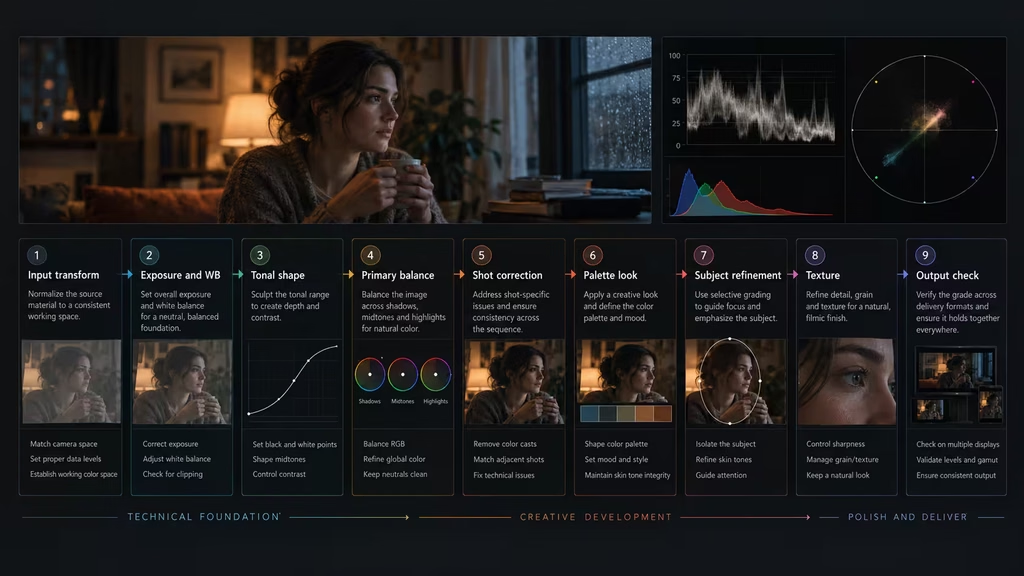
Organize the grade into clear stages or nodes:
1. Input or technical transform 2. Exposure and white balance correction 3. Contrast and tonal shaping 4. Primary color balance 5. Shot-specific corrections 6. Look or palette design 7. Skin and important subject refinement 8. Texture and finishing 9. Output transform and quality check
The names can differ, but the separation helps you understand what changed. If the image breaks, you can disable the look without losing the correction. If a shot needs a local fix, you can make it without changing the entire sequence.
Save a neutral version before applying the look. Keep an untouched source and a corrected baseline. Use versions rather than overwriting the only grade. A cheap workflow becomes expensive when every experiment destroys the path back to a clean image.
Work at a reasonable monitor brightness. If the screen is extremely bright, you may make the grade too dark for ordinary viewers. If the screen is dim or surrounded by colored light, you may overcorrect contrast and saturation. Avoid judging color under a strong colored lamp. Even a modest neutral viewing environment makes decisions more repeatable.
Check the image in at least three conditions: the grading view, a normal-size playback view, and a less controlled consumer display such as a phone or ordinary laptop. These checks are not a replacement for calibrated monitoring, but they expose grades that depend on a single flattering screen.
Use scopes when the application provides them. A waveform helps with luminance and exposure. A vectorscope helps you see overall chroma distribution and skin consistency. An RGB parade can reveal channel imbalance. Scopes should support your eyes, not replace them. A technically centered image can still be emotionally wrong, and a stylized image can intentionally depart from neutral.
Cheap grading mistakes in AI image generation
AI image workflows introduce a special version of the problem. The color may be embedded in the generated image before you ever open a grading application. Prompts often contain vague words such as “cinematic,” “epic,” “moody,” or “film still.” These terms can produce attractive but contradictory results: crushed shadows, intense cyan, orange skin, glossy highlights, and a palette that has no connection to the described light.
Treat the prompt as part of color design. Describe the light source, contrast, palette, saturation level, and material response. Instead of asking for a cinematic image, specify a controlled tonal range, soft highlight roll-off, muted production design, natural skin variation, and one warm practical against cool ambient shade. If the scene is supposed to be harsh, say what makes it harsh: direct noon sun, hard side light, deep architectural shadows, or an unfilled backlight.
Avoid stacking style words that point in opposite directions. “Pastel, neon, desaturated, vibrant, gritty, glossy, low contrast, high contrast” does not give the model a coherent visual instruction. Choose a hierarchy. For example, use a low-saturation palette with a single red accent and moderate contrast. Then add texture only if it serves the image.
Generated images may also contain impossible color relationships. A face can reflect a blue environment without any warm bounce. A metal object can have painted color that behaves like a mirror. A window can be bright on one side and dark on the wrong side. Grading can hide some inconsistencies, but it cannot correct physically contradictory lighting without localized image editing.
Create a palette reference before generating a set. It can be a simple board with three to five color swatches, a note about contrast, and examples of skin and neutral surfaces. Use it to evaluate generations. The best image is not always the most saturated one. It is the one that belongs to the sequence.
How to make a grade feel cinematic without making it expensive
The cinematic impression comes from a group of relationships, not a signature color filter. Composition, lens behavior, lighting, production design, movement, texture, contrast, and editorial rhythm all contribute. Color can strengthen those choices, but it cannot create them alone.
Use color to guide attention. A slightly warmer subject against a cooler background may separate the face. A controlled reduction in background saturation may keep the environment present without competing. A darker corner may focus the eye if it follows the light and the blocking. These are small decisions, but they are usually more convincing than a global hue shift.
Let the scene retain color variety. Real materials respond differently to light. Wood, skin, concrete, painted metal, foliage, and fabric should not all be remapped into one family. A palette can be limited while still containing variation in luminance and hue.
Preserve the character of the source. Soft footage does not become expensive by being sharpened aggressively. A small camera or phone image does not become large-format by receiving a teal shadow. Work with the image’s strengths. If the source has beautiful warm backlight, protect it. If it has gentle skin tones, do not bury them under a preset.
Use contrast as storytelling. A quiet conversation may need open shadows and gentle separation. A confrontation may benefit from tighter values and a harder tonal edge. A memory may be low contrast and slightly faded, but the amount of change should be consistent with the transition into that memory. The audience should understand why the image changed, even if they cannot describe the controls.
A troubleshooting checklist
When a grade looks cheap, pause before adding another effect. Ask these questions in order:
Is the source correctly interpreted?
Check the input color space, gamma, camera transform, project settings, and output transform. Look for an automatic LUT or display conversion being applied twice.
Is the subject exposed correctly?
Inspect faces, hands, and important objects. If they are too dark or too bright, fix exposure before making the palette more dramatic.
Are the blacks and highlights carrying information?
Check whether hair, clothing, walls, clouds, windows, and practical lights have become featureless. Restore detail where it matters. Do not restore noise simply because it exists.
Is the color cast motivated?
Identify the light source that could produce the dominant color. If the cast is accidental, reduce it. If it is intentional, make sure neutral objects and skin still relate to the environment.
Are all colors being treated equally?
If every color is vivid, lower global saturation and build a selective palette. If all colors have been pushed into teal and orange, restore intermediate hues.
Does the face belong to the scene?
Check skin brightness, hue, saturation, and mask edges. A face can be technically correct and still look pasted into the image if its contrast or sharpness does not match the environment.
Does the grade match the shots around it?
Play the edit. Check cuts, not just stills. Match the visual feeling while preserving the legitimate differences caused by angle, light, and blocking.
Is texture hiding a weak correction?
Disable grain, glow, sharpening, and clarity. If the image collapses without them, return to exposure, contrast, and color balance.
Does it survive ordinary viewing?
Check the image at normal size and on a non-reference display. Look for crushed shadows, neon colors, gray faces, and highlight clipping that was not apparent in the grading environment.
When to leave an imperfection alone
Not every irregularity deserves correction. A slight color shift can identify a location, time, or emotional state. A soft highlight can preserve the feeling of a small lens. A darker face may be appropriate if the character is deliberately withheld. A faded black point can support period atmosphere. A touch of color noise may be preferable to a sterile, over-clean image.
The test is whether the imperfection has a role. If removing it makes the frame less specific, less human, or less connected to the scene, keep it. If removing it simply makes the image clearer and more consistent, it was probably an accident.
This is especially important with low-budget work. Trying to imitate a large production by eliminating every irregularity can create a more artificial result. A modest image with clear intent often feels more credible than a technically polished image covered in effects.
A repeatable grading recipe
For a quick but disciplined pass, use this sequence:
1. Watch the scene without touching controls. 2. Write down the subject, light source, mood, and palette in one sentence. 3. Confirm the input and output color spaces. 4. Correct exposure and white balance. 5. Set a useful black point and protect important highlights. 6. Match the hero shot to the surrounding coverage. 7. Lower global saturation until materials separate, then add back only what the scene needs. 8. Shape contrast with a gentle curve rather than a dramatic preset. 9. Refine skin only after the environment is balanced. 10. Add a restrained look based on light and story. 11. Apply texture at the end and reduce it until it is almost easy to miss. 12. Review the scene in motion and on an ordinary display. 13. Export a test, watch it away from the grading interface, and make a final correction.
The recipe is simple because the difficult part is judgment. The point is to stop random adjustments from becoming the workflow.
Final principle: intention beats price
Cheap color grading is usually a symptom of unclear priorities. The image has been pushed toward a familiar idea of cinematic style without deciding what the scene needs. The repair is not to find a stronger LUT or add more contrast. It is to return to the image, identify the subject and light, correct the technical foundation, and make a limited number of choices that support them.
Control the tonal range before chasing color. Protect skin and important materials. Let shadows have color only when that color belongs to the world. Use saturation selectively. Match the sequence. Treat grain, glow, and sharpening as finishing tools rather than evidence of quality. Review the result in motion and under ordinary viewing conditions.
A cheap-looking grade can often be improved with free software and a shorter node tree. What it needs most is not an expensive tool. It needs a clear reason for every visible change.
Continue reading
Further insights from the Journal



Have a story in mind?
Bring your next project into focus.
Tell us what you are creating and what you want the audience to feel.